follow our simple step by step guides and start streaming in minutes
Choose your Device
Select your device below to view the detailed setup guide.
Smart TV Setup Guide
Follow these simple steps to install and start watching BestIPTVOne on your Smart TV.
1
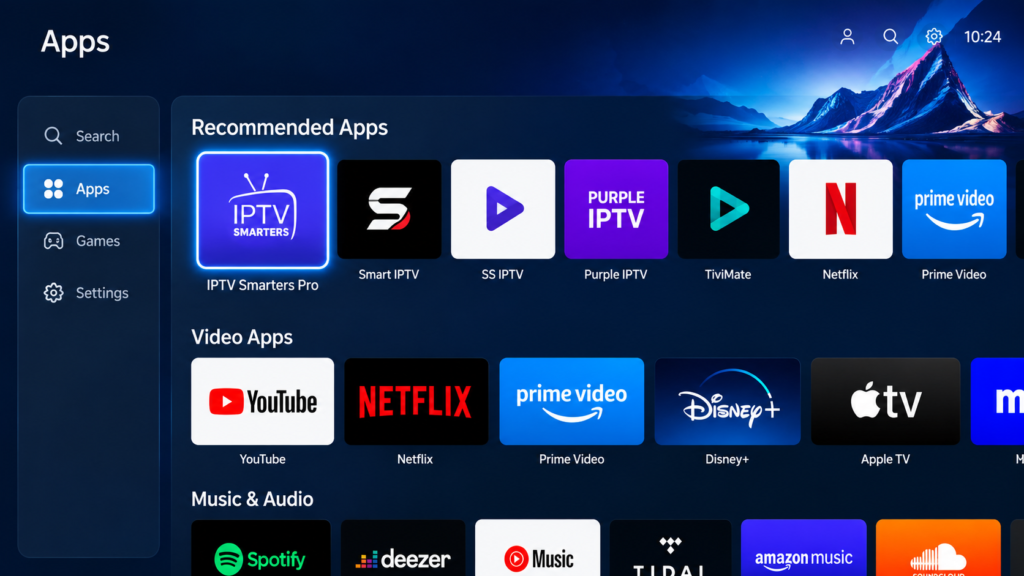
Open App Store
Open the app store on your Samsung, LG or Android TV.
2
Search for IPTV Player
Find and install a compatible IPTV player from your TV’s app store.
3
Open The App
Launch the IPTV application after installation.
4
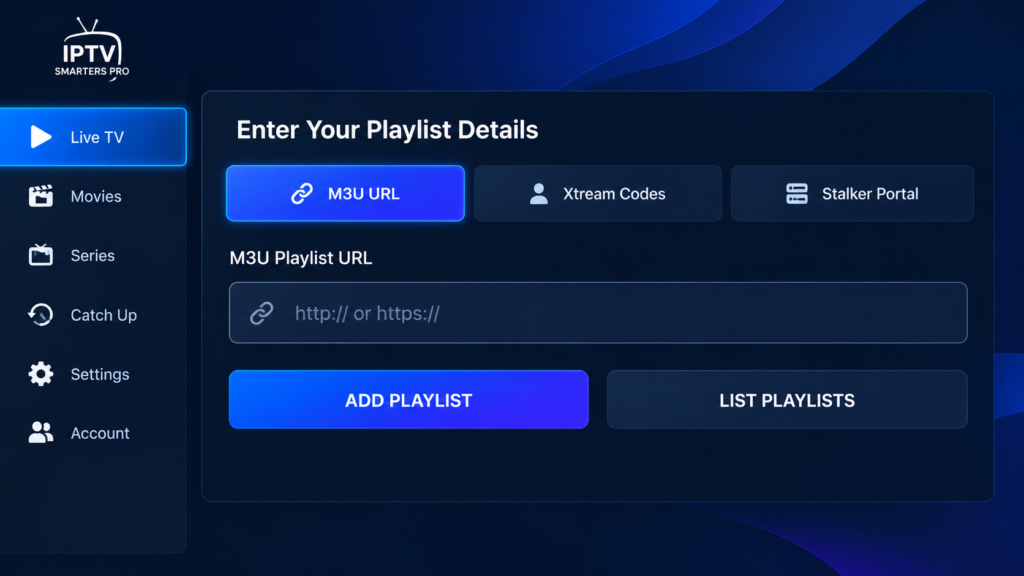
Add Your Subscription
Enter your login details provided with your subscription.
5
Start Streaming
Connect and enjoy live TV channels, movies and series.
Firestick / Fire TV Setup Guide
Follow these simple steps to install and start watching BestIPTVOne on your Firestick or Fire TV.
1
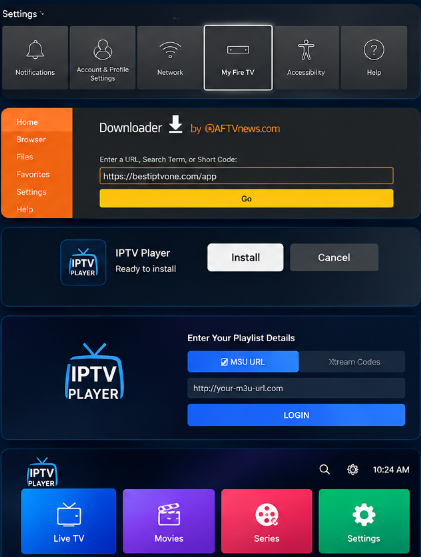
Enable Apps from Unknown Sources
Go to Settings → My Fire TV → Developer Options and enable Apps from Unknown Sources.
2
Download the App
Open the Downloader app and enter the app URL to download the IPTV player. ” code downloader 2257663″
3
Install and Open
Once downloaded, install the app and open it on your Firestick.
4
Add Your Subscription
Enter your login details provided with your subscription.
5
Start Streaming
Connect and enjoy live TV channels, movies and series.
Android Setup Guide
Follow these simple steps to install and start watching BestIPTVOne on your Android device.
1
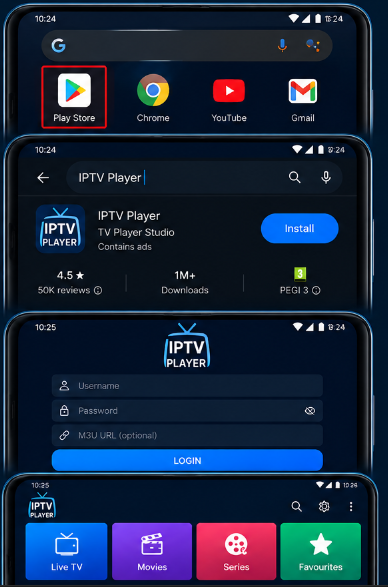
Open Google Play Store
Open the Google Play Store on your Android phone or tablet.
2
Search for IPTV Player
Search for a compatible IPTV player and open its official Play Store listing.
3
Install and Open
Install the app, then open it on your Android device.
4
Add Your Subscription
Enter your login details provided with your subscription.
5
Start Streaming
Connect and enjoy live TV channels, movies and series.
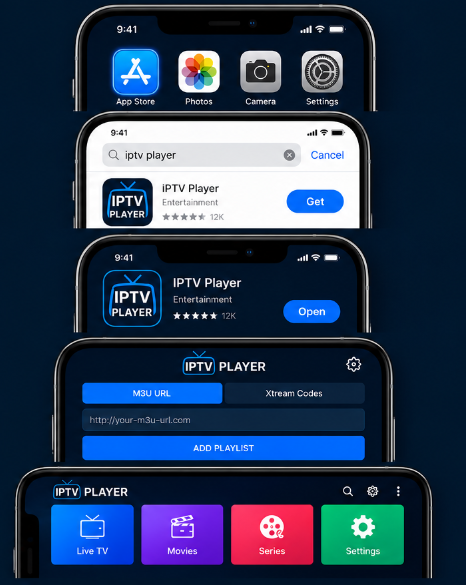
IOS Setup Guide
Follow these simple steps to install and start watching BestIPTVOne on your iPhone or iPad.
1
Open App Store
Open the App Store on your iPhone or iPad.
2
Search for IPTV Player
Search for a compatible IPTV player and open its official Play Store listing.
3
Install and Open
Tap Get to install the app, then open it on your iPhone or iPad.
4
Add Your Subscription
Enter your login details provided with your subscription.
5
Start Streaming
Connect and enjoy live TV channels, movies and series.
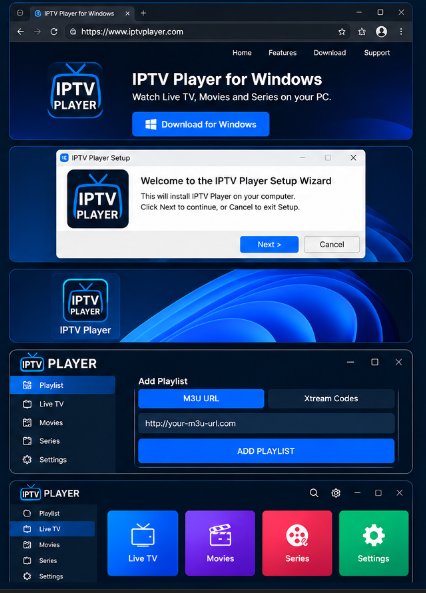
Windows Setup Guide
Follow these simple steps to install and start watching BestIPTVOne on your Windows PC.
1
Open App Store
Download a compatible IPTV player for your Windows PC from its official website.
2
Install the App
Open the downloaded installer and follow the on-screen instructions.
3
Open The App
Launch the IPTV application after installation.
4
Add Your Subscription
Enter your login details provided with your subscription.
5
Start Streaming
Connect and enjoy live TV channels, movies and series.
MAG/ Tv Box Setup Guide
Follow these simple steps to install and start watching BestIPTVOne on your iPhone or iPad.
1
Open Settings
On your MAG device, go to the main menu and open Settings.
2
Network Settings
Search for a compatible IPTV player and open its official Play Store listing.
3
Enter Portal URL
Select Portal 1 and enter the portal URL provided with your subscription. Then press OK.
4
Save and Restart
Press OK to save the settings. Your MAG device will restart automatically.
5
Start Streaming
After restart, your channels, movies and series will be available. Enjoy!
Why Choose Best IPTV ONE for 4K Entertainment ?
Best IPTV One delivers a premium IPTV experience with thousands of live TV channels, movies, series and sports in 4K and FHD quality. Enjoy fast and stable streaming, multi-device compatibility, worldwide content and reliable customer support, all in one place.
200K+ Content
Enjoy a huge library of movies and series, updated regularly.
4K & FHD Quality
Enjoy sharp, crystal-clear picture quality on your favorite content.
Fast & Stable Streaming
Smooth playback with reliable streaming and minimal buffering.
Worldwide Channels
Access local and international channels from around the world.
Multi-Device Support
Watch on Smart TVs, Firestick, Android, iPhone, PC, Mac and more.
24/7 Customer Support
Get assistance whenever you need help with your IPTV experience.